
Bluetooth Not Working on Phone? Causes and Easy Fixes
Introduction
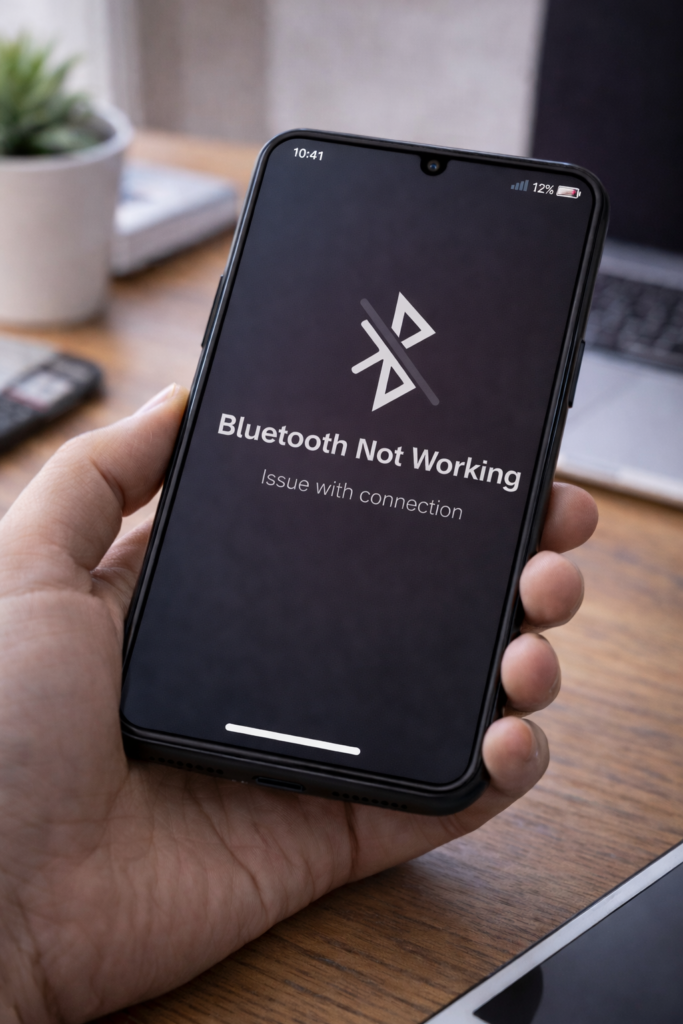
Is Bluetooth not working on your phone even after turning it on? This can be frustrating, especially when trying to connect wireless earphones, speakers, or car audio systems. However, Bluetooth problems are usually caused by simple settings or temporary software issues.
However, in most cases, Bluetooth problems are caused by simple settings or temporary software issues that can be fixed easily.
Therefore, in this guide, you’ll learn the most common reasons why Bluetooth is not working on your phone and how to fix it easily.
1. Turn Bluetooth Off and On
First, refresh the Bluetooth connection.
Steps:
- Turn off Bluetooth
- Wait 10 seconds
- Turn it back on
As a result, the connection may work normally again.
2. Restart Your Phone
Temporary system glitches can stop Bluetooth from working.
Fix:
- Restart your phone
- Turn Bluetooth on again
- Therefore, restarting your phone helps clear temporary glitches that may be blocking Bluetooth connections.
3. Make Sure the Device Is in Pairing Mode
Bluetooth devices must be discoverable.
Check:
- Enable pairing mode on earbuds, speakers, or car system
- Keep the device nearby
- Moreover, ensuring that the Bluetooth device is in proper pairing mode increases the chances of a successful connection.
4. Forget and Re-Pair the Bluetooth Device
Saved Bluetooth data may be corrupted.
Steps:
- Go to Settings → Bluetooth
- Tap the paired device
- Select Forget
- Pair again
5. Check Battery Level of Bluetooth Device
Low battery can prevent connection.
Fix:
- Charge the Bluetooth device
- Try reconnecting
6. Turn Off Airplane Mode
Airplane mode disables Bluetooth on some phones.
Check:
- Make sure Airplane mode is OFF
7. Update Phone Software
Outdated software may cause Bluetooth bugs.
Steps:
- Go to Settings → Software Update
- Install available updates
- For example, software updates often include bug fixes that improve Bluetooth stability and overall performance.
For example, updates often fix connectivity issues.
8. Clear Bluetooth Cache (Android)
Corrupted cache files can block Bluetooth.
Fix:
- Go to Settings → Apps
- Show system apps
- Select Bluetooth
- Tap Clear Cache
9. Reset Network Settings
Resetting network settings fixes Bluetooth, Wi-Fi, and mobile data issues.
Note:
- This removes saved networks
- Personal data stays safe
10. Test with Another Device
This helps identify the real problem.
Check:
- Try connecting to a different Bluetooth device
- Or connect the same device to another phone
Final Thoughts
Bluetooth not working on your phone can be annoying; however, most Bluetooth problems are caused by minor settings or software issues. By following the fixes above, you can restore Bluetooth connectivity quickly and safely.
As a result, following these steps systematically can help you resolve Bluetooth issues without professional assistance.
You may also find these guides helpful: WiFi Keeps Disconnecting on Phone, Mobile Data Not Working, and Phone Keeps Restarting Automatically.