
How to Fix WiFi Connected but No Internet: 10 Simple Solutions
Introduction
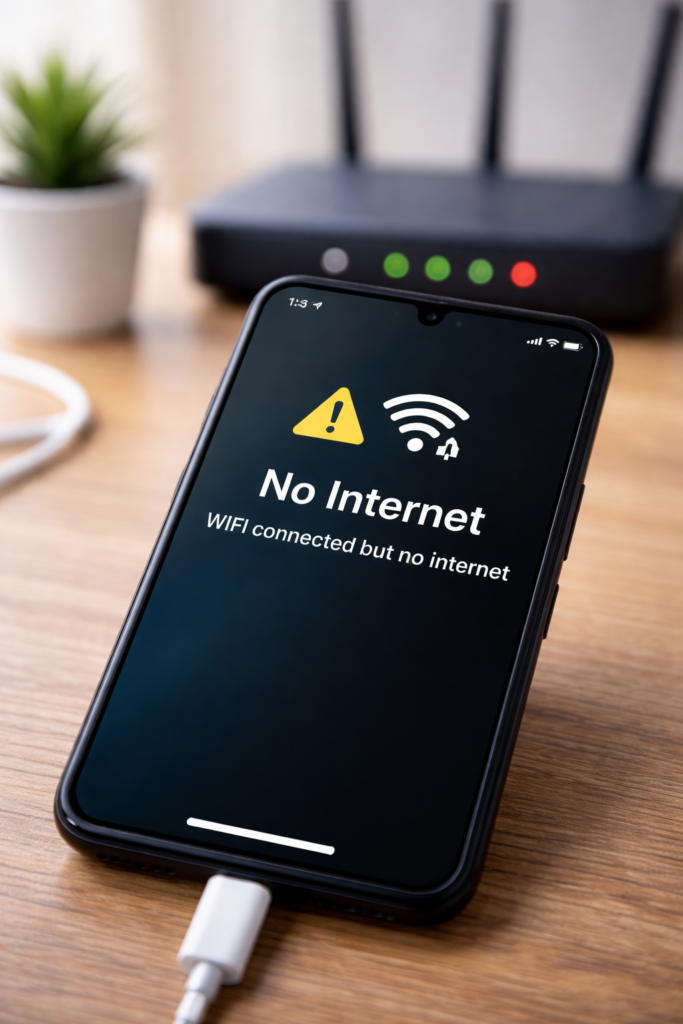
Is your device showing WiFi connected but no internet access? This is a very common and frustrating problem faced by many users. However, the good news is that in most cases, the issue can be fixed easily without calling your internet service provider.
Therefore, in this guide, you will learn simple and effective ways to fix WiFi connected but no internet problems on your phone, laptop, or computer.
1. Restart Your Router and Modem
First, restarting your router and modem can fix many temporary network issues.
Steps:
- Turn off the router and modem
- Wait for 30 seconds
- Turn them back on
As a result, your internet connection may restore automatically.
2. Check If the Internet Is Down
Sometimes the problem is not your device but your internet service provider.
What to do:
- Check if other devices have internet
- Contact your ISP if the issue continues
3. Turn WiFi Off and On
A quick WiFi refresh can solve connection glitches.
Steps:
- Turn off WiFi on your device
- Wait for a few seconds
- Turn it back on
4. Restart Your Device
Restarting clears temporary bugs that affect network connectivity.
Tip:
- Restart your phone, laptop, or PC
- Reconnect to WiFi
5. Forget and Reconnect to the WiFi Network
Saved network settings may cause issues.
How to fix:
- Go to WiFi settings
- Tap Forget network
- Reconnect by entering the password
Moreover, this refreshes your network configuration.
6. Check Date and Time Settings
Incorrect date and time can block internet access.
Solution:
- Enable automatic date and time
- Restart your device
7. Disable VPN or Proxy
VPNs and proxy settings can interfere with internet access.
Fix:
- Turn off VPN
- Disable proxy settings
As a result, normal connectivity may return.
8. Reset Network Settings
If the issue continues, resetting network settings can help.
Note:
- This will remove saved WiFi passwords
- It does not delete personal data
9. Check Router Placement
Poor signal strength can cause internet problems.
Best practice:
- Place router in an open area
- Avoid walls and electronic interference
10. Update Device Software
Outdated software may cause network bugs.
Steps:
- Check for system updates
- Install the latest version
Finally, updates often fix connectivity issues.
Final Thoughts
WiFi connected but no internet issues can be annoying; however, most of the time the solution is simple. By following the steps above, you can quickly restore your internet connection without technical help.
You may also find these guides helpful: How to Fix Phone Charging Slow and How to Fix Phone Battery Draining Fast.